Beginning AutoCAD 2010: Exercise Workbook
Lesson 22

Learning Objectives

After completing this lesson, you will be able to:

  1. Draw an Arc using 10 different methods

  2. Dimension a Arc segments

ARC

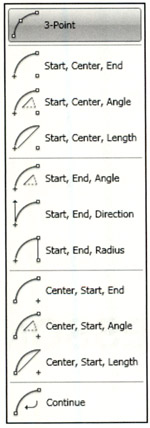
There are 10 ways to draw an ARC in AutoCAD. Not all of the ARCS options are easy to create so you may find it is often easier to trim a Circle or use the Fillet command.

On the job, you will probably only use 2 of these methods. Which 2 depends on the application.

An ARC is a segment of a circle and must be less than 360 degrees.

Most ARCS are drawn counter-clockwise but some may be drawn clockwise by entering a negative input.

  1. Select the Arc Command using one of the following:

    • Ribbon = Home tab / Draw panel /

    • Keyboard = A

  2. Refer to Exercises 22A through 22J for examples of each method listed below.

Dimensioning Arc Lengths

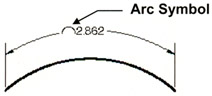
You may dimension the distance along an Arc. This is known as the Arc length. Arc length is an associative dimension.

Example:

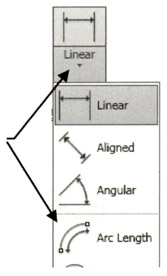
  1. Select the Arc length dimension command using one of the following:

    • Ribbon = Annotate tab / Dimension panel / Select ?

    • Keyboard = dimarc

    Command: _dimarc

  2. Select arc or polyline arc segment: select the Arc

  3. Specify arc length dimension location, or [Mtext/Text/Angle/Partial/Leader]: place the dimension line and text location

    Dimension text = dimension value will be shown here

To differentiate the Arc length dimensions from Linear or Angular dimensions, arc length dimensions display an arc ( ) symbol...

UNLIMITED FREE
ACCESS
TO THE WORLD'S BEST IDEAS

SUBMIT
Already a GlobalSpec user? Log in.

This is embarrasing...

An error occurred while processing the form. Please try again in a few minutes.

Customize Your GlobalSpec Experience

Category: Tube Bending Tooling
Finish!
Privacy Policy

This is embarrasing...

An error occurred while processing the form. Please try again in a few minutes.