Beginning AutoCAD 2010: Exercise Workbook
Lesson 28

Learning Objectives

After completing this lesson, you will be able to:

  1. Assign multiple annotative scales to a single annotative object

  2. Assigning annotative scales to Hatch sets

Assigning Multiple Annotative Scales

In the previous lesson you learned how annotative text and dimensions are automatically scaled to the viewport scale. But in order to have an annotative object appear in both viewports you placed 2 sets of text and dimensions. In this lesson you will learn how to easily assign multiple annotative scales to a single text string or dimension so you need not duplicate them each time you create a new viewport. You will just assign an additional annotative scale to the annotative object.

Again, the easiest way to understand this process it to do it. The following is a step by step example.

  1. Open Annotative Objects.dwg from the previous lesson. If you did not complete the example from the previous lesson go back and do it now. (Refer to page 27-4)

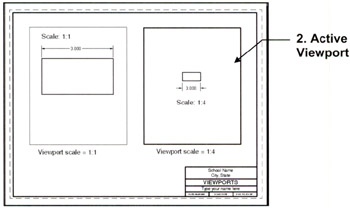
  2. Make the right hand viewport active. (Double click inside the viewport)

  3. Erase the text and the dimension in the right hand viewport only.

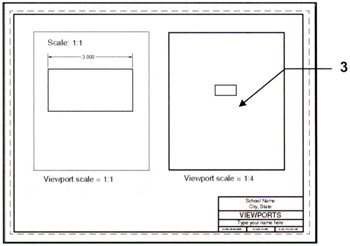
  4. Display all annotative objects in all viewports as follows:

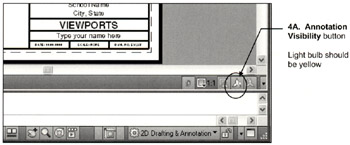
    1. Select the Annotation Visibility button located in the lower right corner of the drawing status bar.

      ON ( Yellow light bulb)

      Displays all Annotation objects in all viewports. (example below)

      OFF ( Blue light bulb)

      Displays only Annotation objects that have an annotative scale that matches the viewport...

UNLIMITED FREE
ACCESS
TO THE WORLD'S BEST IDEAS

SUBMIT
Already a GlobalSpec user? Log in.

This is embarrasing...

An error occurred while processing the form. Please try again in a few minutes.

Customize Your GlobalSpec Experience

Category: Scales and Balances
Finish!
Privacy Policy

This is embarrasing...

An error occurred while processing the form. Please try again in a few minutes.