Beginning AutoCAD 2010: Exercise Workbook
After completing this lesson, you will be able to:
Add a Single Line of text to the drawing
Add a paragraph using Multiline text
Control tabs, indents and use the Spelling Checker
Add Columns
Edit existing text
Mask the text background
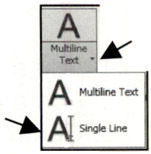
SINGLE LINE TEXT allows you to draw one or more lines of text. The text is visible as you type. To place the text in the drawing, you may use the default START POINT (the lower left corner of the text), or use one of the many styles of justification described on the next page.
Select the SINGLE LINE TEXT command using one of the following:
Ribbon = Annotation tab / Text panel / ![]()
Keyboard = DT

Command: _dtext
Current text style: "STANDARD" Text height: 0.250 Annotative: No
Specify start point of text or [Justify/Style]: Place the cursor where the text should start and left click.
Specify height <0.250>: type the height of your text
Specify rotation angle of text <0>: type the rotation angle then
Enter text: type the text string; press enter at the end of the sentence
Enter text: type the next sentence or press
If you need to be very specific, where your text is located, you must use the Justification option. For example if you want your text in the...