Read this information carefully. It is very important that you understand this concept. More information on the following pages.
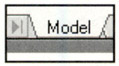
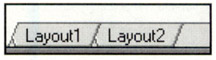
AutoCAD provides two drawing spaces, MODEL and LAYOUT. You move into one or the other by selecting either the MODEL or LAYOUT tabs, located at the bottom left of the drawing area. (If you do not have these displayed follow the instructions on the previous page.)
Model Tab (Also called Model Space)
When you select the Model tab you enter MODEL SPACE.
(This is where you have been drawing and plotting from for the last 25 lessons)
Model Space is where you create and modify your drawings.
Layout Tabs (Also called Paper Space)
When you select a Layout tab you enter PAPER SPACE.
The primary function of Paper Space is to prepare the drawing for plotting.
When you select the Layout tab for the first time, the " Page Setup Manager" dialog box will appear. The Page Setup Manager allows you to specify the printing device and paper size to use.
(More information on this in "How to create a Page Setup " page 26-13)
When you select a Layout tab, Model Space will seem to have disappeared, and a blank sheet of paper is displayed on the screen. This sheet of paper is basically in front of the Model Space. (Refer to the illustration on the next page)
To see the drawing in Model Space, while...

 TABLE OF CONTENTS