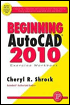
Beginning AutoCAD 2010: Exercise Workbook
Lesson 6

Learning Objectives

After completing this lesson, you will be able to:

  1. Use the Break command

  2. Trim an object to a cutting edge

  3. Extend an object to a boundary

  4. Move and object to a new location

  5. Explode objects to their primitive entities.

Break

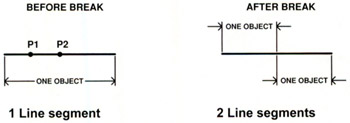
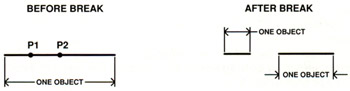
The BREAK command allows you to break an object at a single point (Break at Point) or between two points (Break). I think of it as breaking a single line segment into two segments or taking a bite out of an object.

Method 1 -: Break at a Single Point How to Break One Line into Two Separate Objects with No Visible Space in Between.
  1. Select the BREAK AT POINT command by using::

    • Ribbon = Home tab / Modify panel /

  2. _break Select objects: select the object to break (P1).

  3. Specify first break point: select break location (P2) accurately.

Method 2

Break between 2 points. (Take a bite out of an object.)

(Use this method if the location of the BREAK is not important.)

  1. Select the BREAK command using one of the following:

    • Ribbon = Home tab / Modify panel /

    • Keyboard = BR

  2. _break Select object: pick the first break location (P1).

  3. Specify second break point or [First point]: pick the second break location (P2).

Note
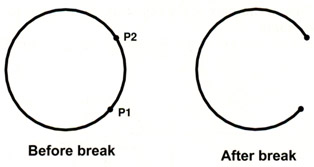
  1. Circles break Counter clockwise. (CCW)

  2. Circles can't be broken with "1 point".

    You must use 2 points.

The following method is the same as method 2 above; however, use this method if...

UNLIMITED FREE
ACCESS
TO THE WORLD'S BEST IDEAS

SUBMIT
Already a GlobalSpec user? Log in.

This is embarrasing...

An error occurred while processing the form. Please try again in a few minutes.

Customize Your GlobalSpec Experience

Category: Limit Switches
Finish!
Privacy Policy

This is embarrasing...

An error occurred while processing the form. Please try again in a few minutes.