Beginning AutoCAD 2010: Exercise Workbook
Lesson 20

Learning Objectives

After completing this lesson, you will be able to:

  1. Use Quick Dimension to automatically dimension

  2. Edit Multiple Dimensions

  3. Edit extension locations using grips

Quick Dimension

Quick Dimension creates multiple dimensions with one command. Quick Dimension can create Continuous, Staggered, Baseline, Ordinate, Radius and Diameter dimensions. Qdim only works in modelspace. It is not trans-spatial. (Refer to Lesson 27)

The following is an example of how to use the "Continuous" option. Staggered, Baseline, Diameter and Radius are explained on the following pages.

  1. Select the Quick Dimension command using one of the following:

    • Ribbon = Annotate tab / Dimension panel /

    • Keyboard = Qdim

      • Command: _qdim

      • Associative dimension priority = Endpoint

      • Select geometry to dimension

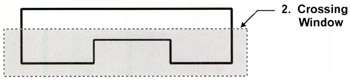
  2. Select the objects to be dimensioned with a crossing window or pick each object

  3. Press to stop selecting objects.

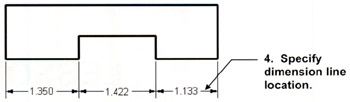
  4. Specify dimension line position, or

    [Continuous/Staggered/Baseline/Ordinate/Radius/Diameter/datumPoint/Edit/settings]: Select "C" for Continuous.

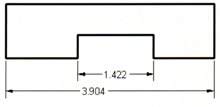
Staggered

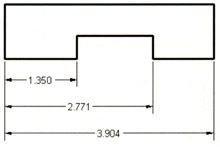
Baseline

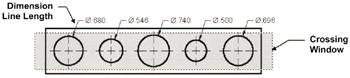
Diameter

  1. You can use a crossing window. Qdim will automatically filter out any linear dims.

  2. Dimension Line Length is determined by the "Baseline Spacing" setting in the Dimension Style.

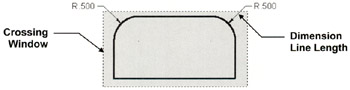
Radius

  1. You can use a crossing window. Qdim will automatically filter out any linear dims.

  2. Dimension Line Length is determined by the "Baseline Spacing" setting in the Dimension Style.

Editing Multiple Dimensions

You can edit existing multiple dimensions using the QDIM/Edit command. The Qdim, edit command will edit all multiple dimensions, no matter whether they were created originally with Qdim or not. All multiple: linear, baseline and continue dimensions...

UNLIMITED FREE
ACCESS
TO THE WORLD'S BEST IDEAS

SUBMIT
Already a GlobalSpec user? Log in.

This is embarrasing...

An error occurred while processing the form. Please try again in a few minutes.

Customize Your GlobalSpec Experience

Category: End Mills
Finish!
Privacy Policy

This is embarrasing...

An error occurred while processing the form. Please try again in a few minutes.