Beginning AutoCAD 2010: Exercise Workbook
Lesson 17

Learning Objectives

After completing this lesson, you will be able to:

  1. Edit the dimension text without changing the value

  2. Move the dimension text within the dimension lines

  3. Modify an entire dimension style

  4. Override a dimension style

  5. Use the Properties Palette to change a dimension

  6. Break intersecting extension and dimension lines

  7. Add a Jog to a dimension line

  8. Adjust the distance between dimensions

Editing Dimension Text Values

Sometimes you need to modify the dimension text value. You may add a symbol, a note or even change the text of an existing dimension.

The following describes 2 methods.

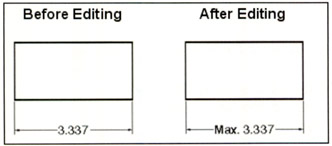
Example: Add the word "Max." to the existing dimension value text.

Method 1 (Properties Palette).
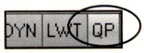
  1. Quick Properties button must be ON.

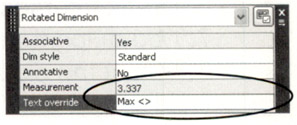
  2. Select the dimension you want to override.

  3. Scroll down to Text override

    (Notice that the actual measurement is directly above it.)

  4. Type the new text ( Max) and < > and press

    ( < > represents the associative text value 3.337)

Important

If you do not use < > the dimension will no longer be Associative.

Method 2 (Text Edit).
  1. Type on the Command line: ed (This is the text edit command)

  2. Select the dimension you want to edit.

Associative Dimension

If the dimension is Associative the dimension text will appear highlighted.

You may add text in front or behind the dimension text and it will remain Associative. Be careful not to disturb the dimension value text.

Non Associative or Exploded Dimension

If...

UNLIMITED FREE
ACCESS
TO THE WORLD'S BEST IDEAS

SUBMIT
Already a GlobalSpec user? Log in.

This is embarrasing...

An error occurred while processing the form. Please try again in a few minutes.

Customize Your GlobalSpec Experience

Category: RF Waveguide Tees
Finish!
Privacy Policy

This is embarrasing...

An error occurred while processing the form. Please try again in a few minutes.