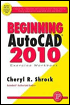
Beginning AutoCAD 2010: Exercise Workbook
Lesson 21

Learning Objectives

After completing this lesson, you will be able to:

  1. Match an objects properties with another object

  2. Create a Revision Cloud

  3. Select a Revision Cloud Style

  4. "Wipe Out" an area of an object

Match Properties

Match Properties is used to "paint" the properties of one object to another. This is a simple and useful command. You first select the object that has the desired properties (the source object) and then select the object you want to "paint" the properties to (destination object).

Only one "source object" can be selected but its properties can be painted to any number of "destination objects".

  1. Select the Match Properties command using one of the following:

    • Ribbon = Home tab / Clipboard panel /

    • Keyboard = MA

    Command: matchprop

  2. Select source object: select the object with the desired properties to match

  3. Select destination object(s) or [Settings]: select the object(s) you want to receive the matching properties.

  4. Select destination object(s) or [Settings]: select more objects or to stop.

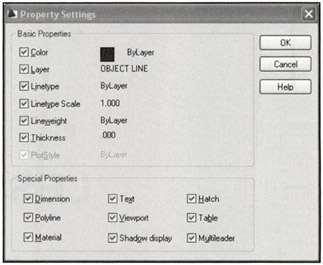
Note: If you do not want to match all of the properties, after you have selected the source object, right click and select "Settings" from the short cut menu, before selecting the destination object. Uncheck all the properties you do not want to match and select the OK button. Then select the destination object(s).

Layer Match

If you draw an object on the wrong layer you can easily change it to the desired layer using Layer Match command. You first select the object that...

UNLIMITED FREE
ACCESS
TO THE WORLD'S BEST IDEAS

SUBMIT
Already a GlobalSpec user? Log in.

This is embarrasing...

An error occurred while processing the form. Please try again in a few minutes.

Customize Your GlobalSpec Experience

Category: Color Meters and Appearance Instruments
Finish!
Privacy Policy

This is embarrasing...

An error occurred while processing the form. Please try again in a few minutes.