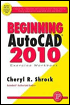
Beginning AutoCAD 2010: Exercise Workbook
Viewports

Note: This is just the concept to get you thinking. The actual step-by-step instructions will follow in the exercises.

Viewports are only used in Paper Space (Layout tab).

Viewports are holes cut into the sheet of paper displayed on the screen in Paper Space.

Viewports frames are objects. They can be moved, stretched, scaled, copied and erased. You can have multiple Viewports, and their size and shape can vary.

Note: It is considered good drawing management to create a layer for the Viewport "frames" to reside on. This will allow you to control them separately; such as setting the viewport layer to "No plot" so it will not be plot.

How to Create a Viewport

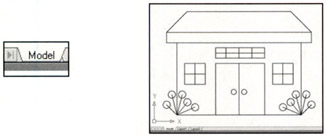
  1. First, create a drawing in Model Space (Model tab) and save it.

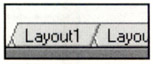
  2. Select the "Layout1" tab.

    When the "Page Setup Manager" dialog box appears, select the Modify button.

    Then you will select the Printing device and paper size to plot on.

    (Refer to "How to Create a Page setup" on page 26-13.)

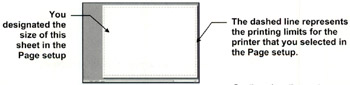
  3. You are now in Paper Space. Model Space appears to have disappeared, because a blank paper is now in front of Model Space, preventing you from seeing your drawing. You designated the size of this sheet in the "page setup" mentioned in #2 above. (The Border, title block and notes will be drawn on this paper.)

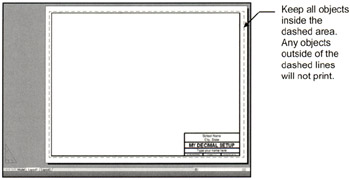
  4. Draw a border, title block and notes in Paper Space (Layout)

Now you will want to see the drawing that is in Model...

UNLIMITED FREE
ACCESS
TO THE WORLD'S BEST IDEAS

SUBMIT
Already a GlobalSpec user? Log in.

This is embarrasing...

An error occurred while processing the form. Please try again in a few minutes.

Customize Your GlobalSpec Experience

Category: Vacuum Viewports and Access Doors
Finish!
Privacy Policy

This is embarrasing...

An error occurred while processing the form. Please try again in a few minutes.