Beginning AutoCAD 2010: Exercise Workbook
Lesson 29

Learning Objectives

After completing this lesson, you will be able to:

  1. Understand Blocks

  2. Create a Block

  3. Insert a Block

  4. Re-define and Purge unused Blocks

  5. Create Mulitleaders with blocks attached

  6. Use the Collect multileader tool.

Blocks

A BLOCK is a group of objects that have been converted into ONE object. A Symbol, such as a transistor, bathroom fixture, window, screw or tree, is a typical application for the block command. First a BLOCK must be created. Then it can be INSERTED into the drawing. An inserted Block uses less file space than a set of objects copied.

Creating a Block

  1. First draw the objects that will be converted into a Block.

    For this example a circle and 2 lines are drawn.

  2. Select the BLOCK MAKE command using one of the following:

    • Ribbon = Insert tab / Block panel /

    • Keyboard = B

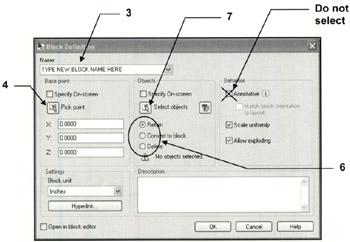
  3. Enter the New Block name in the Name box.

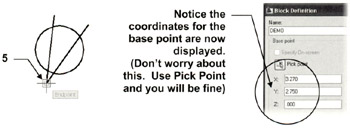
  4. Select the Pick Point button. (Or you may type the X, Y and Z coordinates.) The Block Definition box will disappear and you will return temporarily to the drawing.

  5. Select the location where you would like the insertion point for the Block. Later when you insert this block, the block will appear on the screen attached to the cursor at this insertion point. Usually this point is the CENTER, MIDPOINT or ENDPOINT of an object.

  6. Select an option.

    It is important that you select one and understand the options below.

    Retain

    If this option is selected, the...

UNLIMITED FREE
ACCESS
TO THE WORLD'S BEST IDEAS

SUBMIT
Already a GlobalSpec user? Log in.

This is embarrasing...

An error occurred while processing the form. Please try again in a few minutes.

Customize Your GlobalSpec Experience

Category: Pillow Block Bearings
Finish!
Privacy Policy

This is embarrasing...

An error occurred while processing the form. Please try again in a few minutes.