Beginning AutoCAD 2010: Exercise Workbook
Lesson 12

Learning Objectives

After completing this lesson, you will be able to:

  1. Duplicate an object at a specified distance away

  2. Make changes to an objects properties

  3. Use the Quick Properties Panel

OFFSET

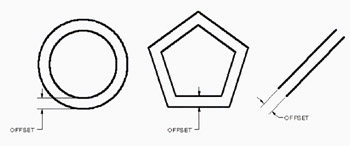
The OFFSET command duplicates an object parallel to the original object at a specified distance. You can offset Lines, Arcs, Circles, Ellipses, 2D Polylines and Splines. You may duplicate the original object or assign the offset copy to another layer.

Examples of Offset Objects.

HOW TO USE THE OFFSET COMMAND:

Method 1

(Duplicate the Original Object)

  1. Select the OFFSET command using one of the following:

    • Ribbon = Home tab / Modify panel

    • Keyboard = Offset

  2. Command: _offset

    Current settings: Erase source=No Layer=Source OFFSETGAPTYPE=0 Specify offset distance or [Through/Erase/Layer] : type the offset distance or select Erase or Layer. (see options on the next page)

  3. Select object to offset or : select the object to offset.

  4. Specify point on side to offset or [Exit/Multiple/Undo]: Select which side of the original you want the duplicate to appear by placing your cursor and clicking. (See options on the next page)

  5. Select object to offset or [Exit/Undo]: Press to stop.

Method 2

(Duplicate original object but assign the Offset copy to a different layer)

To automatically place the offset copy on a different layer than the original you must first change the "current" layer to the layer you want the offset copy to be placed on.

  1. Select the layer that you want the...

UNLIMITED FREE
ACCESS
TO THE WORLD'S BEST IDEAS

SUBMIT
Already a GlobalSpec user? Log in.

This is embarrasing...

An error occurred while processing the form. Please try again in a few minutes.

Customize Your GlobalSpec Experience

Category: Commercial Printing Services
Finish!
Privacy Policy

This is embarrasing...

An error occurred while processing the form. Please try again in a few minutes.