Beginning AutoCAD 2010: Exercise Workbook
Lesson 2

Learning Objectives

After completing this lesson, you will be able to:

  1. Create and use a Template

  2. Select a Command

  3. Draw, Select and Erase objects

  4. Start a New drawing

  5. Open an Existing Drawing

  6. Save, Backup and Recover a drawing

  7. Exit AutoCAD

Create a Template

The first item on the learning agenda is how to create a template file from a drawing file. This is important: You will need this template to complete Lessons 2 through 8.

First You Need to Download a Few Files.

  1. Go to the website: www.shrockpublishing.com

  2. Select "Downloadable Files".

  3. Save them to your " Desktop".

Now You Will Create a Template. (This Will be a Very Easy Task.)

  1. Start AutoCAD, if you haven't already. (Refer to page 1-2)

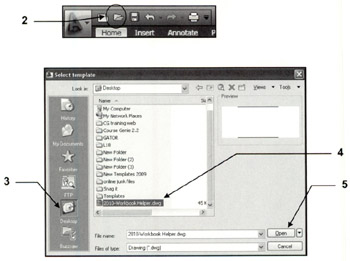
  2. Select the OPEN tool from the Quick Access Toolbar. (Refer to page 1-9)

  3. Select the Desktop directory

  4. Select OPEN

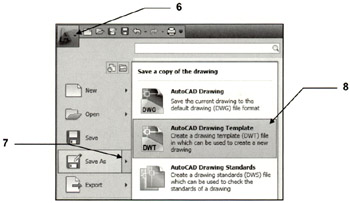
  5. Select the "Application Menu " ?

  6. Select "Save As" ?

  7. Select "AutoCAD Drawing Template".

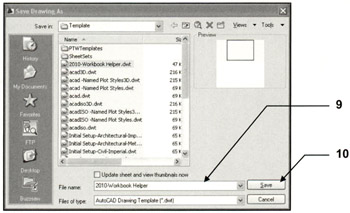
  8. Type the new file name 2010-Workbook Helper in the File Name box.

    Do not type the extension .dwt, AutoCAD will add it automatically.

  9. Select the Save button.

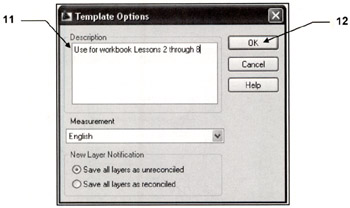
  10. Type the description as shown below.

  11. Select OK button.

Now you have a template to use for Lessons 2 through 8.

At the beginning of each exercise you will be instructed to start a NEW drawing using the 2010-Workbook Helper.dwt,

Using a template as a master setup drawing is very good CAD management.

Using a Temple

The template...

UNLIMITED FREE
ACCESS
TO THE WORLD'S BEST IDEAS

SUBMIT
Already a GlobalSpec user? Log in.

This is embarrasing...

An error occurred while processing the form. Please try again in a few minutes.

Customize Your GlobalSpec Experience

Category: DNA Sequencing Services
Finish!
Privacy Policy

This is embarrasing...

An error occurred while processing the form. Please try again in a few minutes.