Beginning AutoCAD 2010: Exercise Workbook
After completing this lesson, you will be able to:
Create a new Text Style
Change an existing Text Style
Delete a Text Style
Select a Point Style
Divide an object into specified number of segments
Divide an object to a specified measurement
AutoCAD provides you with two preset Text Styles named "Standard" and "Annotative".
(Annotative will be discussed in Lesson 27)
You may want to create a new text style with a different font and effects.
The following illustrates how to create a new text style.
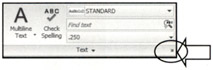
Select the TEXT STYLE command using one of the following:
Ribbon = Annotate tab / Text panel / ? 
Keyboard = ST

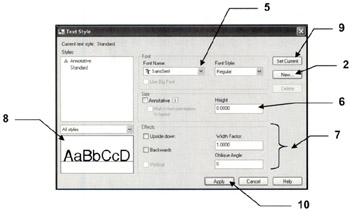
Select the NEW button.

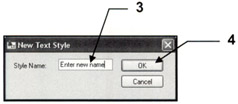
Type the new style name in STYLE NAME box.
Styles names can have a maximum of 31 characters, including letters, numbers, dashes, underlines and dollar signs. You can use Upper or Lower case.
Select the OK button.
Select the FONT.
Enter the value of the Height.
Note: If the value is 0, AutoCAD will always prompt you for a height.
If you enter a number the new text style will have a fixed height and AutoCAD will not prompt you for the height.
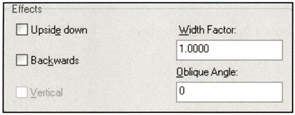
Assign EFFECTS.

UPSIDE-DOWN
Each letter will be created upside-down in the order in which it was typed.
Note: this is different from rotating text 180 degrees.
BACKWARDS
The letters will be created backwards as typed.
VERTICAL
Each letter will be inserted directly under...