Beginning AutoCAD 2010: Exercise Workbook
Lesson 10

Learning Objectives

After completing this lesson, you will be able to:

  1. Move the Origin

  2. Control the display of the UCS icon

Moving the Origin

As previously stated in Lesson 9, the ORIGIN is where the X, Y, and Z-axes intersect. The Origin's (0,0,0) default location is in the lower left-hand corner of the drawing area. But you can move the Origin anywhere on the screen using the UCS command. (The default location is designated as the "World" option or WCS. When it is moved it is UCS, User Coordinate System.)

You may move the Origin many times while creating a drawing. This is not difficult and will make it much easier to draw objects in specific locations.

Refer to the examples on the next page.

To MOVE the Origin:

  1. Select one of following:

    • Ribbon = View tab / Coordinates panel /

    • Keyboard = ucs

    • Current ucs name: *WORLD*

  2. Specify origin of UCS or [Face/NAmed/OBject/Previous/View/World/X/Y/Z/ZAxis]:_o

  3. Specify new origin <0,0,0>: type coordinates or use the cursor to place new Origin location.

To RETURN the Origin to the default "World" location (the lower left corner):

  1. Select one of the following:

    • Ribbon = View tab / Coordinates panel /

    • Keyboard = ucs w

The Following are a Few examples of Moving the Origin.

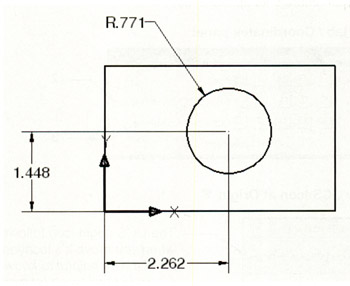
If you move the Origin to the lower left corner of the rectangle it will make if very to accurately place the center of the circle.

How to place the Circle accurately:

  1. Select the "Move Origin"...

UNLIMITED FREE
ACCESS
TO THE WORLD'S BEST IDEAS

SUBMIT
Already a GlobalSpec user? Log in.

This is embarrasing...

An error occurred while processing the form. Please try again in a few minutes.

Customize Your GlobalSpec Experience

Category: Industrial Conveyors
Finish!
Privacy Policy

This is embarrasing...

An error occurred while processing the form. Please try again in a few minutes.