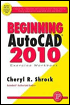
Beginning AutoCAD 2010: Exercise Workbook
Using the Layout

Now that you have the correct paper size on the screen, you need to do a little bit more to make it useful.

The next step is to:

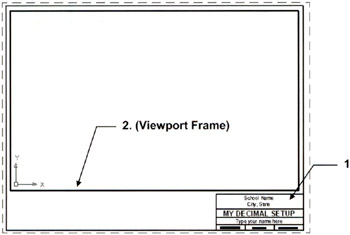
  1. Add a Border, Title Block and notes in Paper Space.

  2. Cut a viewport to see through to Model Space.

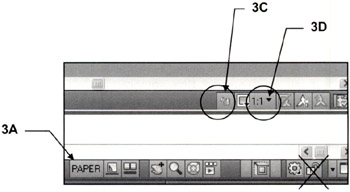
  3. Adjust the scale of the viewport as follows.

    1. You must be in Paper Space.

    2. Click on the Viewport Frame.

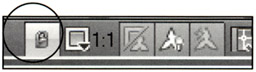
    3. Unlock Viewport if it is locked.

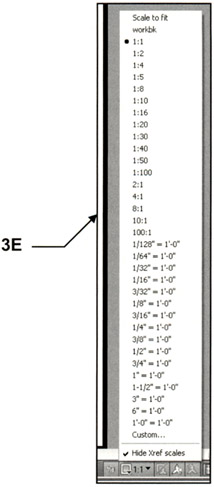
    4. Select the Viewport Scale down arrow ?.

    5. Select Scale (List shown on next page)

  4. Lock the Viewport.

    Now you may zoom as much as you desire and it will not affect the adjusted scale.

    Note: Adjusting the scale of the viewport will be discussed more in lesson 27.

UNLIMITED FREE
ACCESS
TO THE WORLD'S BEST IDEAS

SUBMIT
Already a GlobalSpec user? Log in.

This is embarrasing...

An error occurred while processing the form. Please try again in a few minutes.

Customize Your GlobalSpec Experience

Category: Scales and Balances
Finish!
Privacy Policy

This is embarrasing...

An error occurred while processing the form. Please try again in a few minutes.