Beginning AutoCAD 2010: Exercise Workbook
After completing this lesson, you will be able to:
Understand Object Snap
Use Running Object Snap
Use the Zoom options to view the drawing
Change the Drawing Limits
Select the Units of Measurement and Precision
In Lesson 3 you learned about Increment Snap. Increment Snap enables the cursor to move in an incremental movement. So you could say your cursor is "snapping to increments" preset by you.
Now you will learn about Object Snap. If Increment Snap snaps to increments, what do you think Object Snap snaps to? That's right; "objects". Object snap enables you to snap to "objects" in very specific and accurate locations on the objects. For example, the endpoint of a line or the center of a circle.
You must select a command, such as LINE, before you can select Object Snap.
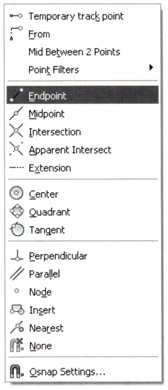
While holding down the shift key, press the right mouse button The menu shown below should appear.
Highlight and press left mouse button to select.

The following object snaps will be discussed in this Lesson:
Endpoint, Midpoint, Intersection, Center, Quadrant, Perpendicular and Tangent.
Refer to their descriptions on the next page.
The remaining will be discussed in future lessons.
Object snap is used when AutoCAD prompts you to place an object. Object snap allows you to place objects very accurately.