Beginning AutoCAD 2010: Exercise Workbook
PAN

After you zoom in and out or adjust the scale of a viewport the drawing within the viewport frame may not be placed as you would like it. This is where PAN comes in handy. PAN will allow you to move the drawing around, within the viewport, without affecting the size.

Note: Do not use the MOVE command. You do not want to actually move the original drawing. You only want to slide the viewport image, of the original drawing, around within the viewport.

How to Use the PAN Command.

  1. Select a layout tab (paper space)

  2. Unlock the viewport if it is locked. (Refer to page 25-12)

  3. Click inside a viewport.

  4. Select the PAN command using one of the following:

    • Ribbon = View tab / Navigate panel /

    • Keyboard = P < enter>

    • Status Line =

  5. Place the cursor inside the viewport and hold the left mouse button down while moving the cursor. (Click and drag) When the drawing is in the desired location release the mouse button.

  6. Lock the viewport.

    (Refer to page 26-12)

Refer to the Example on the next page.

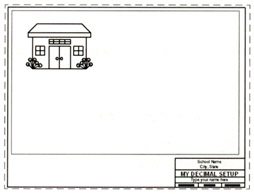
Before PAN

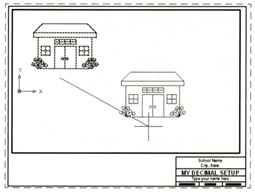
Click once in viewport to activate it.

To use PAN (Click, Drag, Release)

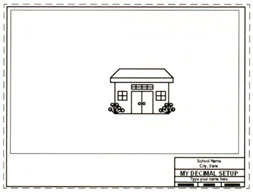
After PAN

UNLIMITED FREE
ACCESS
TO THE WORLD'S BEST IDEAS

SUBMIT
Already a GlobalSpec user? Log in.

This is embarrasing...

An error occurred while processing the form. Please try again in a few minutes.

Customize Your GlobalSpec Experience

Category: Computer Mice and Pointing Devices
Finish!
Privacy Policy

This is embarrasing...

An error occurred while processing the form. Please try again in a few minutes.