Beginning AutoCAD 2010: Exercise Workbook
How to Lock a Viewport

After you have manipulated the drawing within each viewport, to suit your display needs, you will want to LOCK the viewport so the display can't be changed accidentally. Then you may zoom in and out and you will not disturb the display.

Note

Accurately adjusting the scale of a viewport will be discussed in detail in Lesson 27.

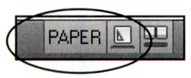
  1. Make sure you are in Paper Space.

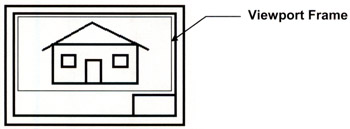
  2. Click on a Viewport Frame.

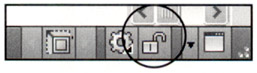
  3. Click on the Open Lock tool located in the lower right corner of drawing area.

    The icon will change to a Closed Lock tool.

Now, any time you want to know if a Viewport is locked or unlocked just glance down to the Lock tool shown above.

Note

Do not use the Lock shown in the lower right corner of the screen.

This locks the size and position of toolbars and windows.

UNLIMITED FREE
ACCESS
TO THE WORLD'S BEST IDEAS

SUBMIT
Already a GlobalSpec user? Log in.

This is embarrasing...

An error occurred while processing the form. Please try again in a few minutes.

Customize Your GlobalSpec Experience

Category: Locks
Finish!
Privacy Policy

This is embarrasing...

An error occurred while processing the form. Please try again in a few minutes.